
Why Is My Laptop Overheating?
A warm laptop is normal, especially under load. Overheating is when the heat starts to affect performance or comfort, or when the laptop shuts down to protect itself. Left alone, repeated high temperatures can shorten the life of the battery, drive and other components.
This guide explains the signs, the causes and the fixes you can try yourself, and it tells you when a repair is the safer option.
Signs Your Laptop Is Overheating
- The fan runs loudly or constantly, even with few apps open
- The keyboard, base or exhaust vent is too hot to touch comfortably
- The laptop slows down, stutters or freezes, especially during video calls, games or editing
- It shuts down or restarts suddenly without warning
- You see blue screens or error messages during heavy tasks
- The battery drains much faster than before
Common Causes of Laptop Overheating
| Cause | How to spot it |
|---|---|
| Dust in the vents and fan | Loud fan, weak airflow from the vent, heat that builds up over months |
| Blocked airflow | Gets hot on a bed, sofa or lap; covered vents |
| Too many background programs | High CPU use in Task Manager, even when idle |
| Dried-out thermal paste | An older laptop that runs hot even after cleaning |
| Failing or slow fan | Fan makes grinding noise, or does not spin up when hot |
| Demanding apps or games | Heat rises only during heavy use |
| Malware or mining software | Fan runs hard with nothing open |
| Worn or swollen battery | Heat near the battery, short battery life, bulging case |
| Hot room or direct sun | Heat is worse in summer, in a car or by a window |
1. Shut it down and let it cool
If the laptop feels very hot, save your work, shut it down and let it rest for 15 to 30 minutes. Unplug the charger if the battery area is hot.
2. Use it on a hard, flat surface
Most laptops pull air in from the bottom. Soft surfaces like beds, cushions and laps block the vents. A desk or table is best, and a laptop stand with space under the base improves airflow further.
3. Clean the vents
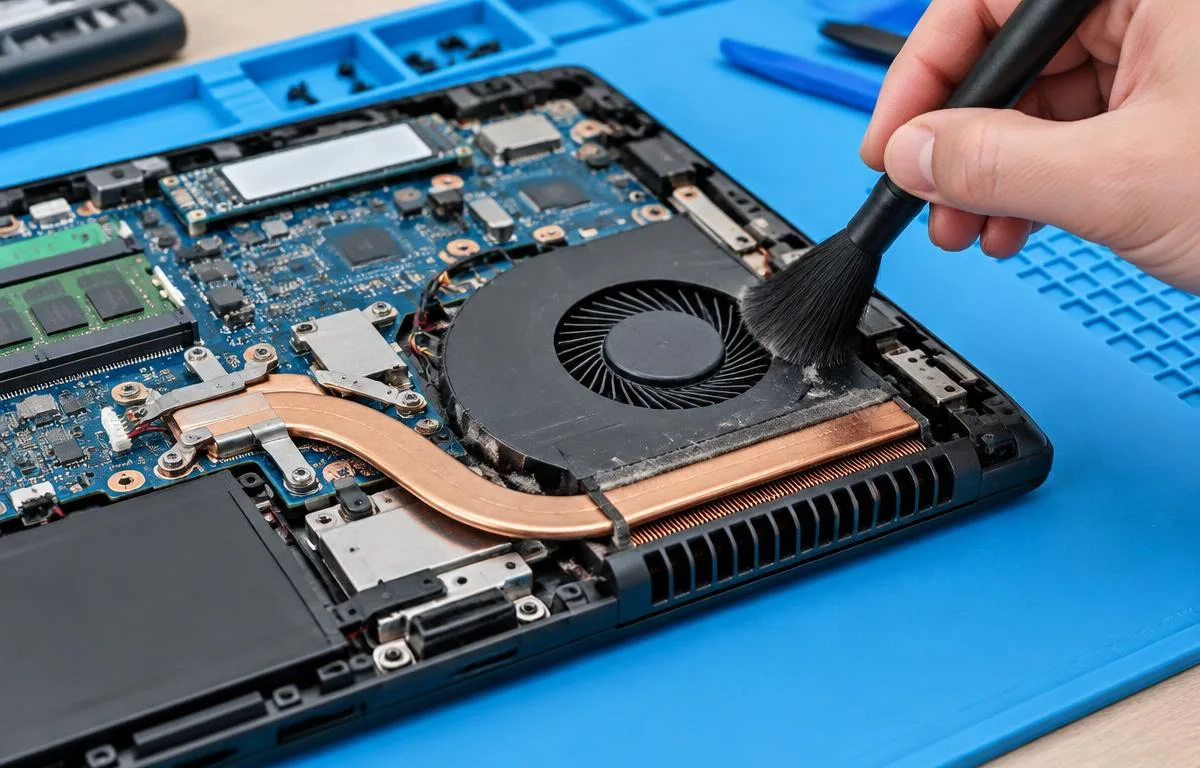
Switch the laptop off and unplug it. Use short bursts of compressed air at the vents, and a soft brush to remove loose dust. Hold the fan still while you do this so it does not spin too fast. Don't use a vacuum cleaner, because it can create static electricity that damages parts.
4. Close heavy programs
Press Ctrl + Shift + Esc to open Task Manager. On the Processes tab, sort by CPU and close apps that are using a lot of power when you are not using them. Browsers with many tabs are a common cause. Our guide on why a laptop is slow covers more of this.
5. Check the power mode
Open Settings > System > Power & battery and set the power mode to Balanced rather than Best performance if the laptop runs hot. Balanced reduces heat for everyday tasks, with little noticeable change in speed.
6. Scan for malware
Open Windows Security > Virus & threat protection and run a quick scan. Hidden programs that use your processor in the background can keep the fan running at full speed.
7. Install updates and drivers
Install pending Windows updates and the latest BIOS and driver updates from the laptop maker's website. Some updates improve fan control and power management.
8. Add a cooling pad if needed
A cooling pad can lower temperatures a little for gaming and heavy work. It will not fix a blocked fan or dried thermal paste, so clean the laptop first.
Keeping a Laptop Cool in Chennai's Heat and Humidity
Chennai's hot, humid weather and dusty roads put extra load on a laptop's cooling system. A room that is already warm leaves less margin before the laptop starts to throttle.
- Use the laptop in a cooler, shaded room when you can, and keep it away from windows and direct sun.
- If you work in an air-conditioned office, avoid moving a cold laptop straight into the heat and switching it on. Let it adjust for a few minutes.
- Keep the vents free of dust by cleaning them every few months, or sooner if you use the laptop near construction or on a busy road.
- Never leave a laptop in a parked car, bike box or bag in the sun.
- Use a surge protector, because voltage fluctuations can stress the charger and battery.
- Offices with many laptops should plan regular cleaning as part of maintenance, so heat problems are caught early.
Mistakes to Avoid
- Using a vacuum cleaner on the vents. It can generate static that damages the circuit board.
- Opening the laptop without experience. Cables, screws and ribbon connectors are easily damaged, and it may void the warranty.
- Putting the laptop in a freezer or using ice. Condensation forms and can ruin the electronics.
- Blocking the vents with a cover or keyboard skin that is too thick.
- Ignoring a hot, swollen or smelly battery. This is a safety risk.
When to Get Help From a Technician
Stop using the laptop and have it checked if you notice any of these:
A technician will usually open the laptop, clean the fan and heat sink, replace the thermal paste if needed, test the fan and battery, and check temperatures under load. Ask them to explain what they found, so you know whether the fix is a clean-up, a part replacement or an upgrade.
| Warning sign | Why it matters |
|---|---|
| Shuts down repeatedly from heat | The cooling system is failing, or the temperature is reaching a protective limit |
| Fan is loud, grinding or silent when hot | The fan may be failing |
| Still overheating after cleaning and the fixes above | Often dried thermal paste or a blocked heat pipe |
| Swollen battery, bulging case or lifted trackpad | A damaged battery. Unplug it and do not charge it. |
| Burning smell, sparks or discoloured vents | A possible electrical fault. Switch it off and unplug it. |
| Warped or discoloured plastic near the hinge or vents | Prolonged heat damage |
Laptop Still Overheating? Get It Checked in Chennai
Most overheating comes from dust, poor airflow and heavy software, and the fixes above solve it in many cases. If your laptop still runs hot, shuts down or makes strange noises, a proper inspection can prevent bigger and costlier damage.
Coptratech helps homes and businesses across Chennai with computer troubleshooting, system diagnostics, software configuration and desktop or laptop maintenance. Tell us what your laptop is doing and we will explain your options in plain language.
- Learn more about our Desktop & Laptop Support.
- Looking after a team's computers? See End-User Support.
- Request a quote or call +91 96771 46044.
- Visit us at No. 6/68, North Silver Street, St. Thomas Mount, Chennai 600016.
This guide is general information, not a diagnosis of a specific device or site. For advice on your own setup in Chennai, call +91 96771 46044 or send an enquiry.